
- Owners
- Staff
Zones and numbered sites
Draw a zone, add numbered sites in it, and what happens when you delete one.
Checked against Sitemapper on
A zone is an area of your property that holds sites, such as a riverside section. Sites in a zone are numbered in order and share its colour. Owners, managers and field rangers can draw zones.
Draw a zone
- In the map editor, choose Draw area. A panel titled Draw zone opens.
- Click around the edge of the zone, inside your property's boundary. You need at least three corners. Undo last pin takes back the last one.
- Give it a Zone Name, for example "Riverside".
- Choose Save zone. It gets a colour of its own.
Undo doesn't take back a whole zone once it's saved.
Add numbered sites
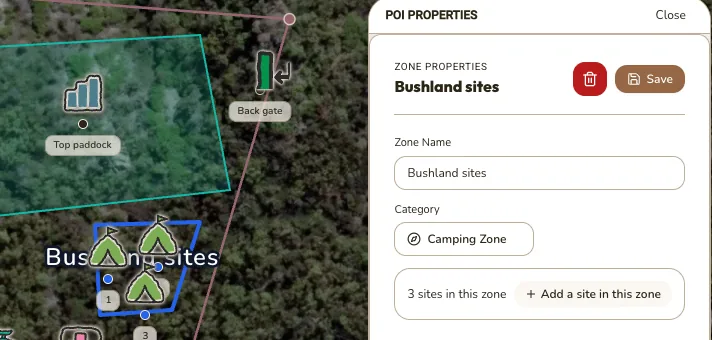
- Select the zone by clicking its name on the map. If you can't see the name, zoom out a little. If sites cover the name, click either end of it.
- Choose Add a site in this zone. A site is added in the middle of the zone, numbered one higher than the highest number already in it.
- Drag the new site to where it belongs. Each new site starts in the same spot, so move each one before adding the next.
A site you add with Add place inside a zone joins that zone and is numbered too, as long as you keep the name it starts with.
Move a site to another zone
Dragging a site doesn't change its zone. Select the site, choose the zone in its Zone list, or None, then choose Save. Sites that were on the map before you drew the zone aren't added to it, so set their zone this way too.
Delete a zone
Select the zone and choose the bin. If it holds sites, Sitemapper asks what to do with them:
- Keep the sites leaves them on the map without a zone.
- Delete the zone and its sites (with the number of sites) removes them all.
Then choose Keep sites & delete zone or Delete zone and sites to confirm.
Still stuck? Email us and tell us what you were trying to do.