
- Owners
- Staff
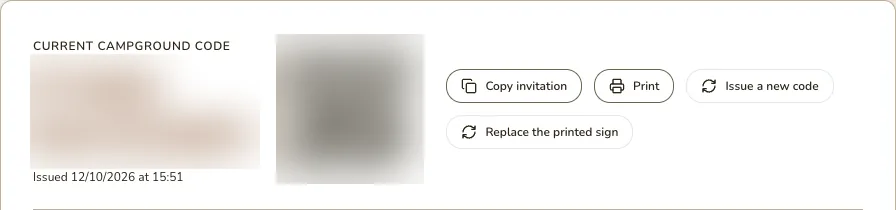
Issue a new code, or replace the printed sign
What each button does to the code you've shared and the sign on the wall, and when to use which.
Checked against Sitemapper on
Your property has two ways in: the typed access code, and the QR code on the printed sign. You can change either one without changing the other. Neither change removes a visitor who is already in.
Only owners and managers can do this. Field rangers and read-only staff don't see these buttons.
Which one to use
- Issue a new code when the typed code has been shared further than you'd like. Your printed sign keeps working.
- Replace the printed sign when a photo of the sign is going round, or a sign has gone missing. The typed code keeps working.
Issue a new code
- In the portal, open Sites Directory and choose Guest Access on your property's row.
- Choose Issue a new code.
- Read the window, which says Guests already in keep their access. The old code stops working for anyone new. Printed signs keep working.
- Choose Confirm & Issue New Code.
The new code appears straight away. After this:
- The old code no longer works for anyone new, and nor does any invitation you've already sent. Send the new code to visitors who haven't arrived yet.
- Your printed sign keeps working. A visitor who scans it gets the new code.
- A visitor already in keeps using the map. If their phone later has to sign in again, it shows Your park's code has changed. Ask reception for the new one to send a help request or update your declaration. They can still see the map.
Replace the printed sign
- On the same Guest Access page, choose Replace the printed sign.
- Read the window, which says Anyone with a photo of the old sign will no longer get in. You will need to print the sign again.
- Choose Confirm & Replace Sign.
- The page says Your printed sign has been replaced. Print a new copy to display at the campground. Choose Print and put the new sign up.
The old sign stops working straight away. Someone who scans it with their camera sees This sign is no longer in use. Ask reception for the current code. Your typed code and the invitations you've sent keep working.
Still stuck? Email us and tell us what you were trying to do.