
- Owners
- Staff
Print the sign visitors scan
Print your property's sign with its QR code, and put it where visitors arrive.
Checked against Sitemapper on
Every property has a sign with a QR code on it. Visitors who have Sitemapper on their phone scan it to open your map. Print it once and put it where visitors arrive, such as reception or the entrance gate.
Owners, managers and field rangers can print the sign. Read-only staff can't see it.
Print it
- In the portal, open Sites Directory from the side menu.
- Find your property and choose Guest Access on its row.
- Choose Print. Your browser's print window opens with the sign on a page of its own.
- Print it, and put it up where visitors will see it as they arrive.
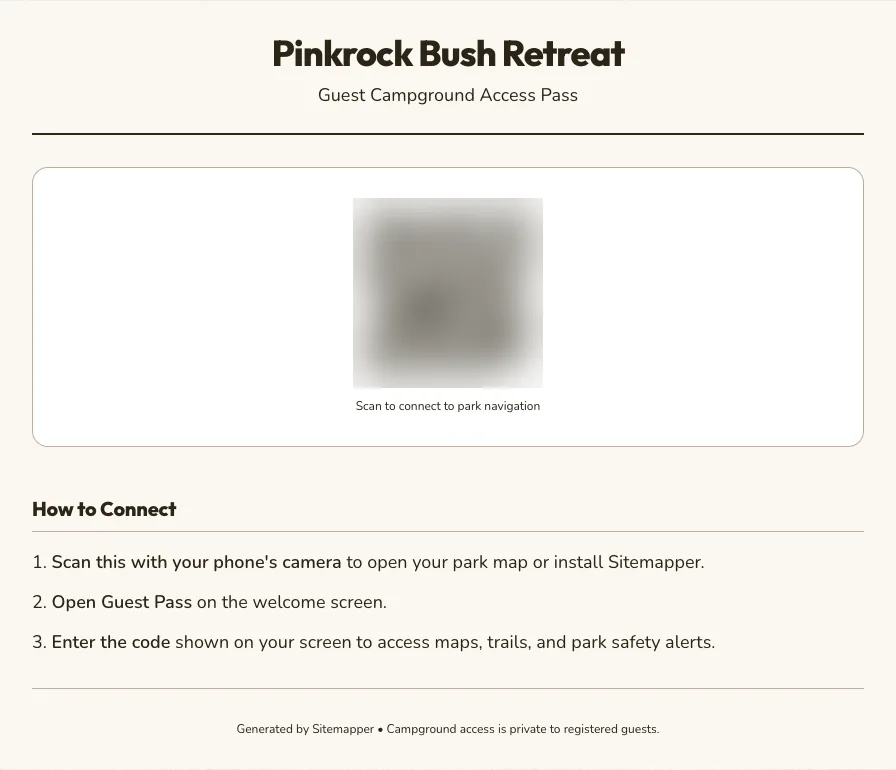
The sign shows your property's name and the QR code. It doesn't show the typed access code, so a new code doesn't mean a new sign.
What happens when a visitor scans it
- From inside Sitemapper. On the Guest Pass tab, the visitor taps the QR icon at the right of the Site Access Code box and points the phone at the sign. The code fills in, and they tap Launch Guest Navigation.
- With the phone's camera. The phone opens a web page showing your property's name and its current access code. The visitor then types that code into Sitemapper.
Tapping or scanning the link doesn't open Sitemapper by itself yet. The visitor opens Sitemapper first.
If something goes wrong
- Print is greyed out. The page is still loading the sign. Wait a moment, then try again.
- A visitor's scan isn't recognised. The sign may have been replaced since it was printed. See A visitor says the map won't open.
Still stuck? Email us and tell us what you were trying to do.