
- Visitors
Find your site and get there
Find a place on the property's map, follow a route to it, and what the map does about hazard areas.
Checked against Sitemapper on
Find a place
- On the map, choose Tap here to start exploring! A sheet titled Start exploring opens.
- Search for what you want, for example a site number or toilets, or choose a kind of place from the list.
- The map shows those places, and the sheet tells you how far away the nearest one is. Tap a place to see its name.
- To see everything again, clear the Showing chip at the top of the map.
The property's entrance and exits, and any hazard areas it has marked, always show on the map, whatever you've chosen.
Get there
- Tap the place, then choose Navigate Here.
- Choose Start Route Navigation.
- Follow the line on the map. The bar shows the distance and about how long it takes. Arrived at destination! shows when you're within about 15 metres.
- Choose End Navigation when you're done.
The route follows the trails the property has drawn where it can. If the property hasn't drawn a trail that way, the line goes straight to the place, so look where you're going and follow the property's signs. Walk, Cycle and Drive change the time estimate, not the route.
Hazard areas
A property can mark areas to take care in, and areas you mustn't enter.
- Tap a hazard area to see whether it's No entry or Take care, and the property's note about it.
- If you walk into one with Sitemapper open, your phone vibrates and shows Take care: or No entry: with the area's name. For a no-entry area it says Leave this area the way you came.
- A route never takes you into a no-entry area. If there's no way round, the app says No safe route found. Follow the park's signs. If the place you chose is inside one, it says This place is inside a no-entry area.
- If a route passes through an area to take care in, the bar says Passes through: with the area's name.
Your phone shows the hazard areas from the last time it had signal. A change the property makes reaches your phone when it next has signal. Always follow signs and staff at the property.
When you're not there yet
If you're away from the property, the map says You are away from the park. If your phone hasn't found where you are yet, it says We can't see where you are yet.
- Choose Directions to the entrance.
- Choose Apple Maps, Google Maps or Waze, whichever you have. Your maps app plans the drive.
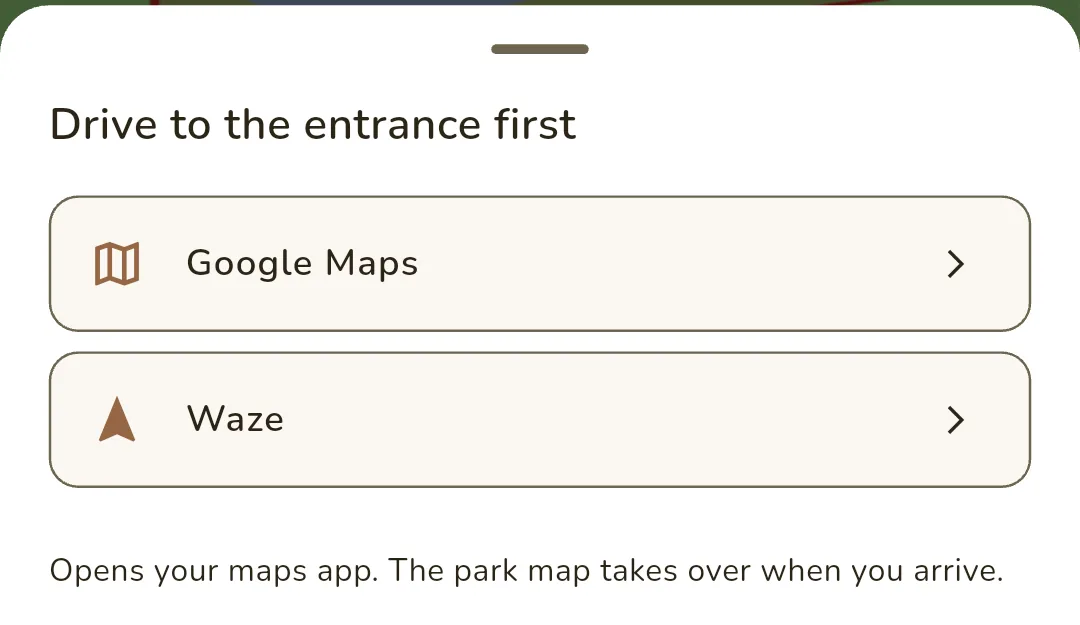
- When you arrive, open Sitemapper again and the property's map takes over.
If the property hasn't marked its entrance, the directions go to reception or the middle of the property, and the sheet tells you which.
Still stuck? Email us and tell us what you were trying to do.