
- Visitors
Open a property's map
Use the access code or the sign at the property to open its map in Sitemapper.
Checked against Sitemapper on
The property gives you an access code, or has a sign with a QR code on it. Either one opens its map. You don't need an account or a password.
Open the map while you still have signal. Your phone needs signal the first time; after that it keeps the map.
Type or paste the code
- Open Sitemapper and choose the Guest Pass tab.
- In Site Access Code, type the code the property gave you. You can also paste the whole message they sent you, or just the link in it.
- Choose Launch Guest Navigation.
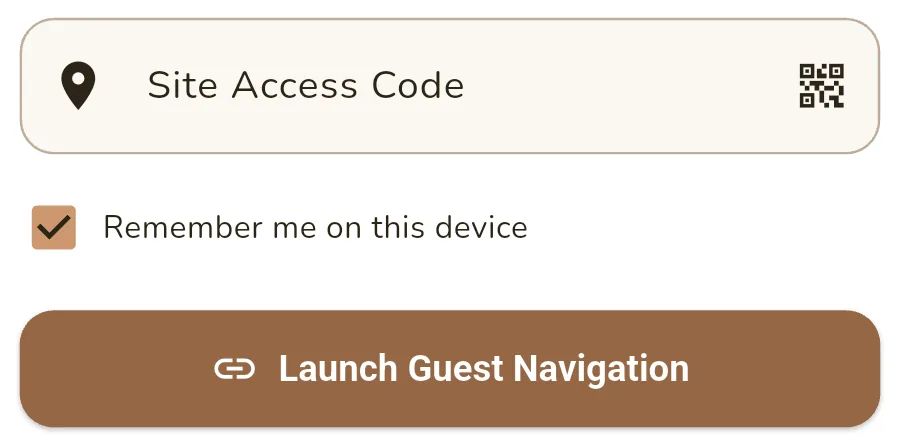
Capitals, spaces and hyphens don't matter.
Scan the sign
- Open Sitemapper and choose the Guest Pass tab.
- Tap the QR icon at the right-hand end of the Site Access Code box.
- Point your phone at the QR code on the sign. The code fills in by itself.
- Choose Launch Guest Navigation.
If you scan the sign with your phone's camera instead, a web page opens with the property's code on it. Open Sitemapper and type that code in.
Leave Remember me on this device ticked so the map opens straight away next time.
If something goes wrong
- That code isn't recognised. The code may have changed. Ask the property for the current one.
- Too many tries. Wait 15 minutes, or ask reception. Wait, then try again with the right code.
- A network connection is required to join a park for the first time. Move to where you have signal and try again.
- Camera permission was denied. Your phone isn't letting Sitemapper use the camera. Type the code instead.
- Your park's code has changed. You can still use the map. Ask the property for the new code if you need to ask for help or give your details again.
Still stuck? Email us and tell us what you were trying to do.